How to Log Activities
Summer Adventures activities can either be logged in a web-browser on the Summer Adventures Site, or by using the “Moodle” mobile app. Please see the below instructions for each. (Scroll down for Mobile App Instructions)
Web Version
(Compatible with PCs, Laptops Tablets, Phones etc)
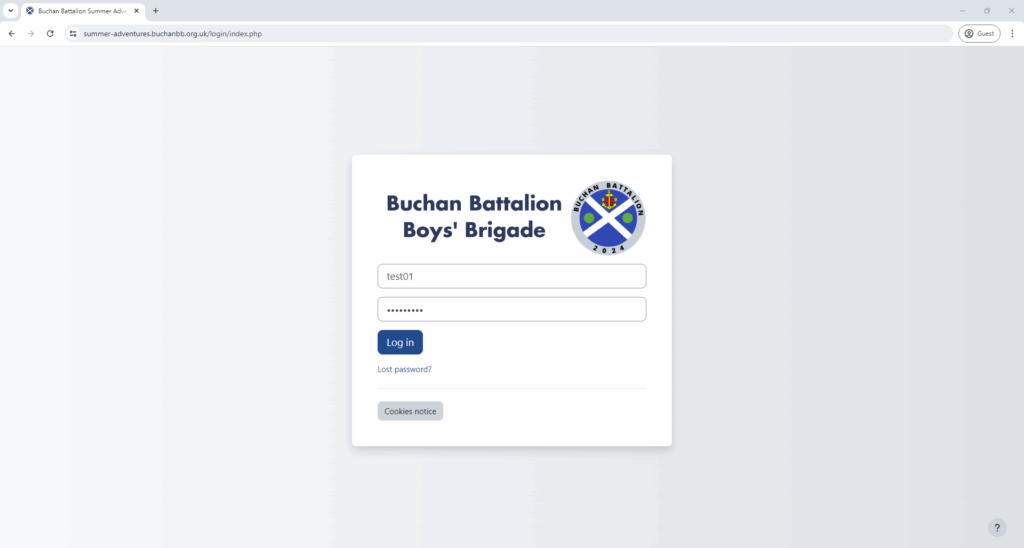
- 1) Head to https://aberdeen.summer-adventures.org.uk/ and login with your username and password, if you have forgotten your password click the “Lost Password?” option or email ross@summer-adventures.org.uk.
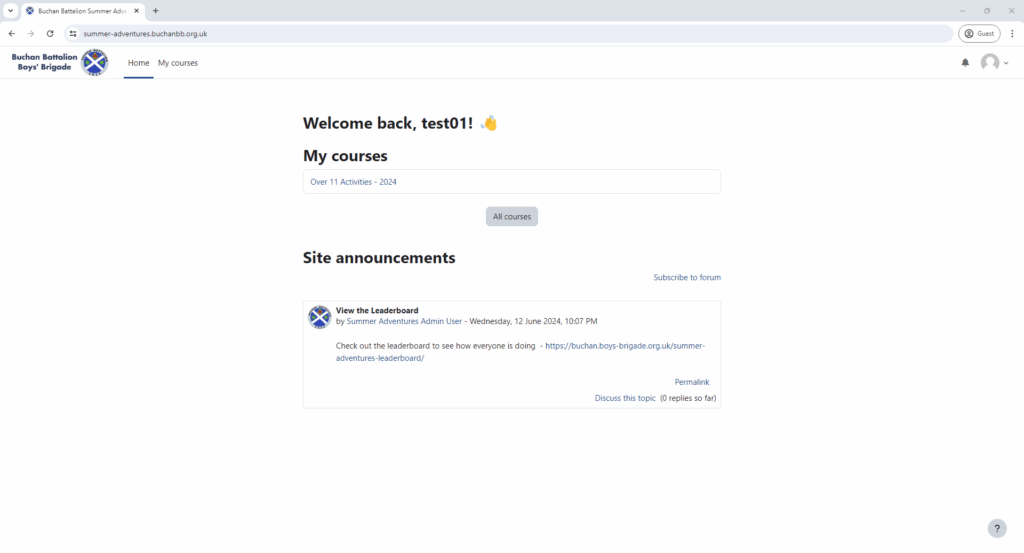
- 2) From the Home Page, select the activity set, this will either be “Under 11 Activities – 2025” or “Over 11 Activities – 2025”
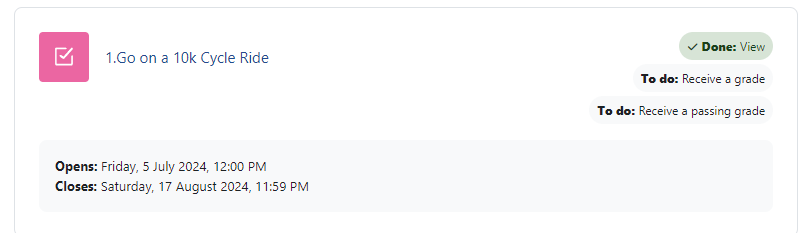
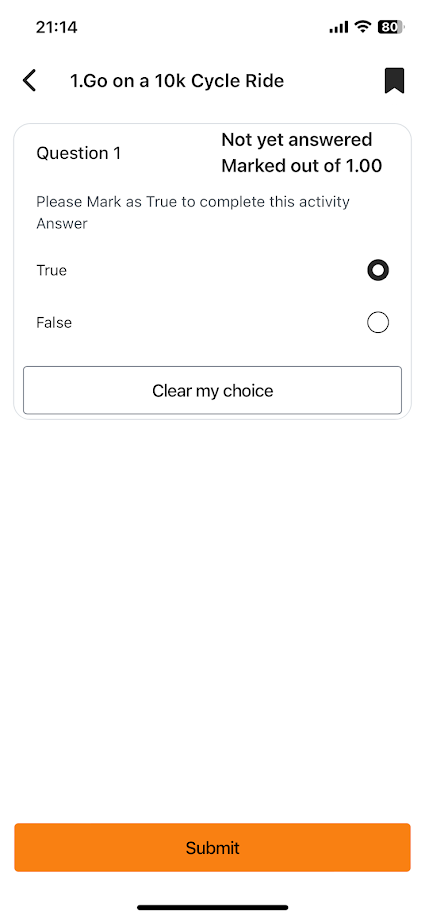
- 3) Select on the activity you want to mark as complete, e.g. “1.Go on a 10k Cycle Ride” and then click on the Attempt Quiz button.
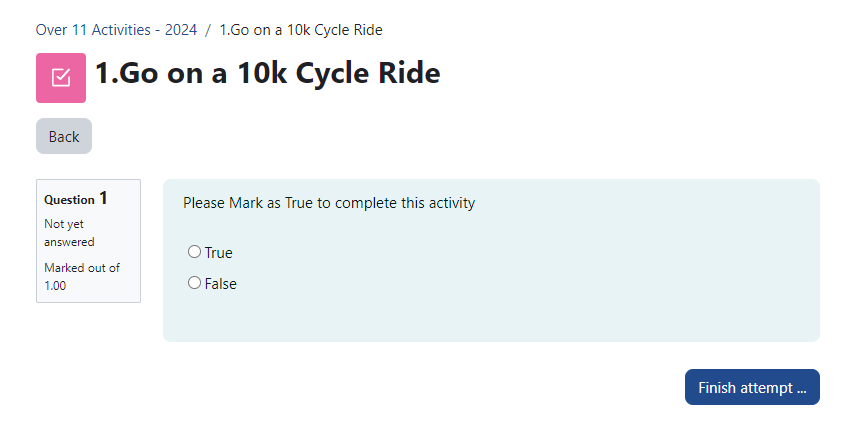
- 4) To complete the activity, select True and then press Finish attempt and then finally the Submit button.
- 5) This will then automatically set your score for that activity to 1 and will update your position on the leaderboard!

Mobile App
(Compatible with Tablets, Phones etc)
- 1) Go to the Google Play Store or the Apple App Store and search for “Moodle” and install the app, the logo is a orange M with a graduation hat.
- 2) If it asks if you are a learner or educator, click skip
- 3) In the “Your Site” box enter https://aberdeen.summer-adventures.org.uk/ and then login with your account.
- 4) On the home page, select “My Courses” and then select the activity set, this will either be “Under 11 Activities – 2025” or “Over 11 Activities – 2025”
- 5) Now click into the activity you wish to complete and select Attempt Quiz Now.
- 6) You should select True as the answer to mark it as complete then click submit.
- 7) This will then automatically set your score for that activity to 1 and will update your position on the leaderboard!